
Exporting data from a warehouse, reformatting it, uploading a CSV, and repeating that for every analysis is the kind of friction that quietly eats into your team’s time. With this release, that step is gone. If your data is already in BigQuery, you can connect it to QuantixAI directly – and every app you use will have access without repeating the setup.
How the Connection Works
The integration lives in the Data Management app. You set up the connection there once, and every other QuantixAI module – Forecasting, Causal Impact, Marketing Mix Modeling – picks it up automatically. No repeated credentials, no switching between tabs to reconfigure things.
When you open the Quick Upload dialog in any app, you’ll now see two tabs: Upload File and BigQuery. Switch to the BigQuery tab, select a table from the list of your available tables, click Use table, and the data loads directly. That’s the entire workflow once the connection is in place.
What You Need to Prepare
There are two requirements on your BigQuery side before connecting: a table naming convention and a date column format. Both are straightforward.
Table Name Prefixes
QuantixAI identifies which tables belong to which app based on a required prefix at the start of the table name. The prefix is the only naming requirement – you can call the rest of the table whatever makes sense for your data.
| App | Required prefix | Example table name |
|---|---|---|
| Analysis | quantixai_ |
quantixai_monthly_revenue |
| Forecast | quantixai_forecast_ |
quantixai_forecast_daily_revenue |
| Causal Impact | quantixai_ci_ |
quantixai_ci_campaign_sales |
| Marketing Mix Model | quantixai_mmm_ |
quantixai_mmm_media_spend_weekly |
Date Column Format
Every table must include a column named exactly date, with values in YYYY-MM-DD format (for example: 2024-03-15). If your date column has a different name or format, rename it in BigQuery before connecting.
All other columns should be numeric – revenue, sessions, conversions, media spend, and so on. QuantixAI detects them automatically and makes them available for analysis.
Setting Up the Connection
-
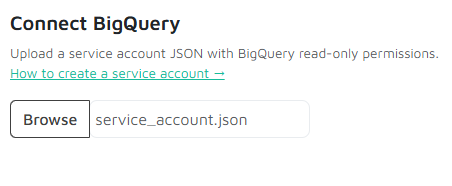
Open the Data Management app and go to the BigQuery tab.
You’ll find this in your main QuantixAI navigation.
-
Upload your Google Cloud service account JSON key.
This is a file you download from Google Cloud Console. It gives QuantixAI read-only access to your BigQuery data. Your credentials are encrypted and stored securely – you won’t need to repeat this step.
-
Done. Your tables are now available across all QuantixAI apps.
Any table following the naming convention above will appear automatically in the Load Data dialog.
Don’t have a service account yet?
Your Google Cloud administrator can create one and share the JSON key file with you. The account only needs BigQuery Data Viewer access to your dataset – nothing broader than that.
What Happens After You Load the Data
Once a table is loaded, QuantixAI handles the rest through the same pipeline as a CSV upload:
- Dates are parsed and validated automatically
- Any missing days in the time series are filled in – a requirement for forecasting and causal models to work correctly. We still recommend to fill missing dates with your preffered imputation methode before you load the data.
- Numeric columns are detected and made available for you to select as your target metric or input variables
Troubleshooting
Table doesn’t appear in the list?
Check the following:
- The table name starts with the correct prefix for the app you’re using
- The table exists in the BigQuery project linked to your service account
- Your service account has BigQuery Data Viewer permission on that dataset
Table loads but shows an error?
The most common cause is a missing or incorrectly named date column, or dates that aren’t in YYYY-MM-DD format. The app will show a specific message explaining exactly what it found.
Ready to connect your data?
Open the Data Management app in QuantixAI and find the BigQuery tab to get started. The connection takes a few minutes to set up – and works across every app from that point on.
Open QuantixAI